Welcome to the XtreamService Application Help File!
This help file can be used to locate and review information about the screens and windows available in the XtreamService application, including summaries for a wide range of application features, field descriptions, and procedure topics.
|
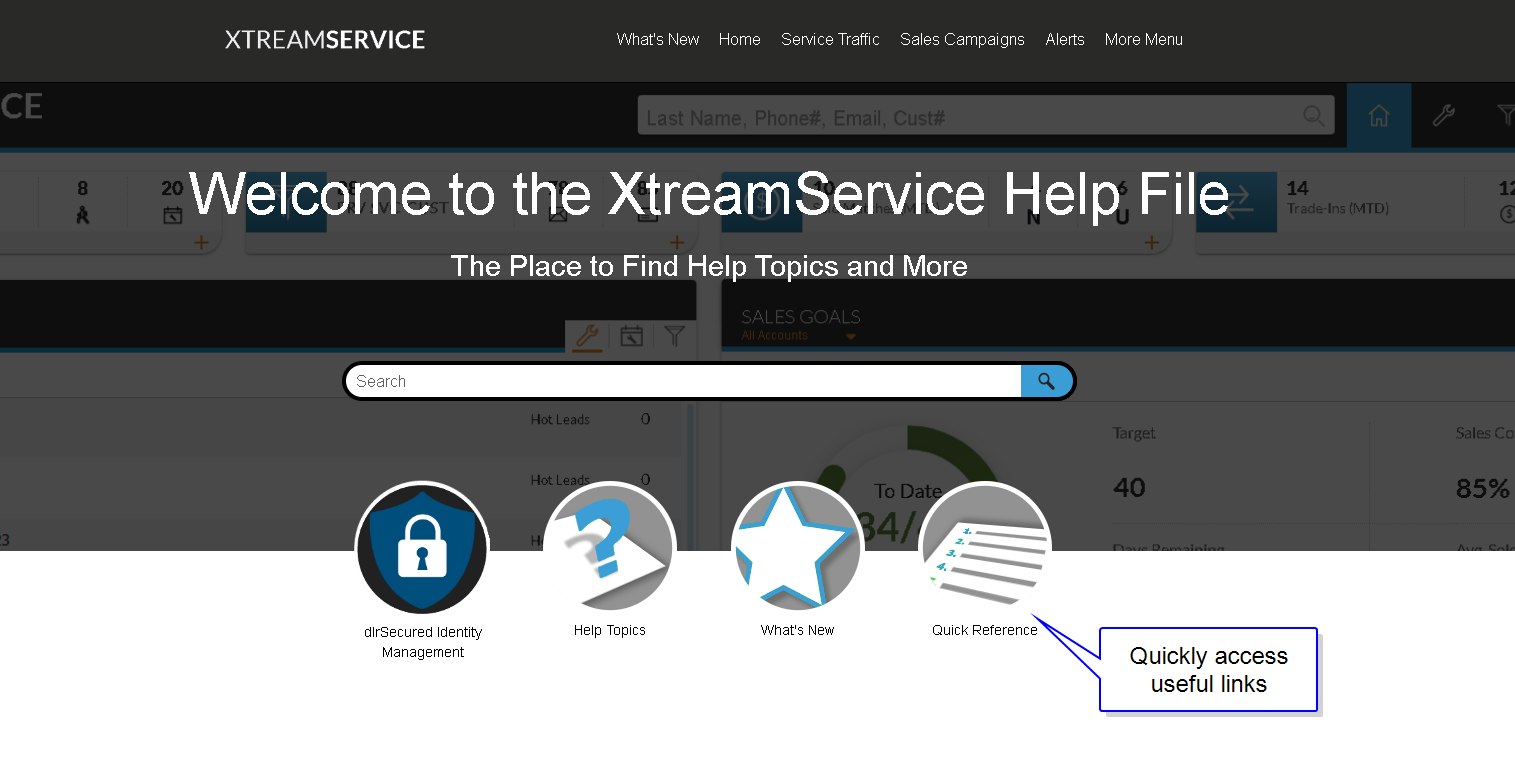
When the help file is accessed, the new help file home page displays. The home page includes a number of features that can be used to search for or browse topics, such as the
In addition, What's New topics and help topics and procedure topics can be easily accessed by clicking the corresponding link buttons below the Search field. For example, click the What's New icon to access the What's New landing page, where a list of current What's New topics displays. Click the Help Topics icon to access detailed information on how to use the new features of the help file. The Procedures icon can be clicked to access a list of available procedure topics. The home page provides a central location for quickly navigating to or searching for topics most relevant to your needs.
Using this help file, you can search for and access topics using the following methods.
 Search for Keywords and Phrases Using the Search Field
Topics can be located by entering keywords for general searches or specific phrases for exact searches in the Search field. The Search field is available on the home page of the help file as well as at the top of each topic page, allowing you to search for information from anywhere within the help file.
To search based on keywords, simply enter a keyword or multiple keywords in the Search field and press the ENTER key. Topics matching the entered search criteria display below the Search field. For example, enter service traffic to display all topics that include the words "service", or "traffic". The search results are automatically ranked in order of relevance, helping you quickly identify the most useful topics.
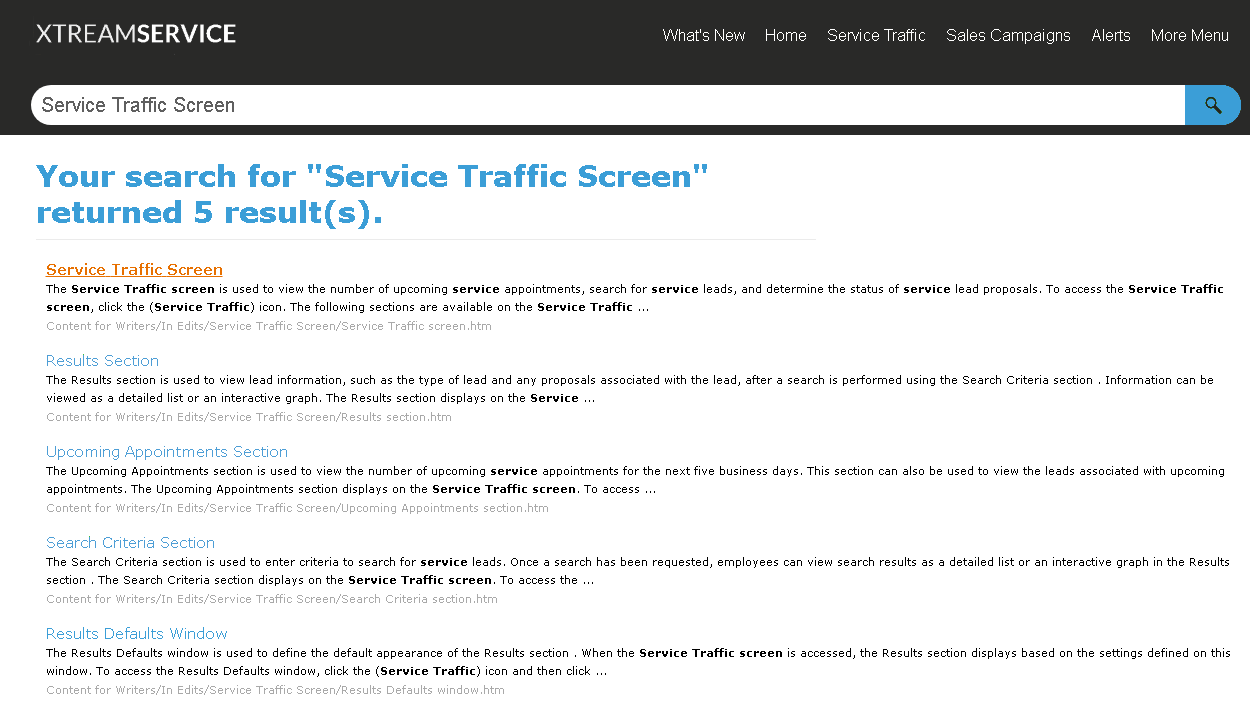
Searches can also be performed using phrases. To search based on a phrase, enter the phrase surrounded by "" (Quotation Marks) and press the ENTER key. Topics containing the entered phrase in the topic title display first, followed by topics that contain the exact phrase in the text, and then followed by topics that are related to or partially contain the phrase.
After performing a search, simply click a topic title in the search results to display the topic page.
Browse Categories Using the Navigation Menu
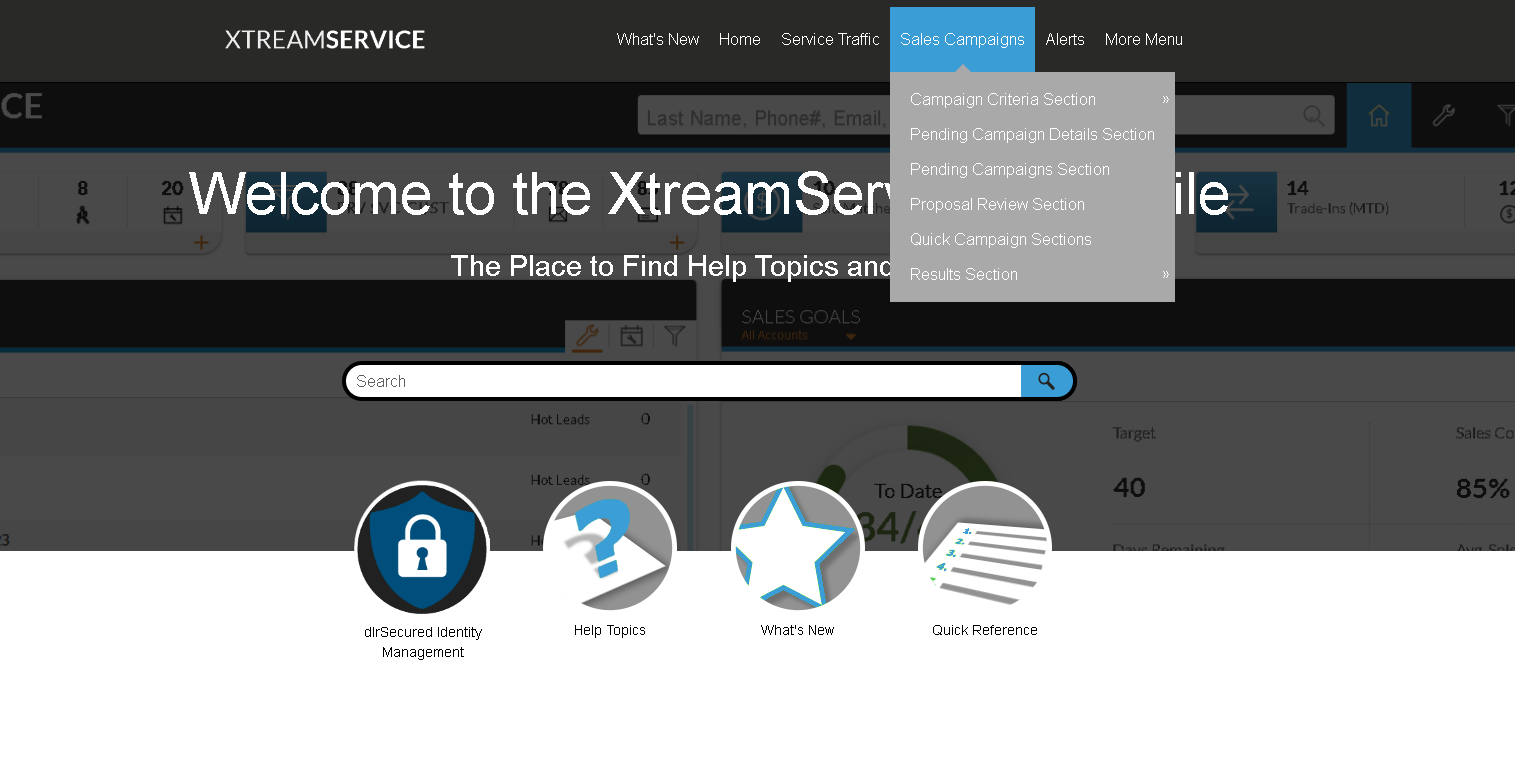
Topics can also be located using the convenient navigation menu at the top of the screen, which display topics grouped by application menu item or related category. The navigation menu displays at the top of both the home page and topic pages when the help file is accessed from a desktop environment, allowing you to quickly access and review topics from anywhere within the help file.
|
Access Related Topics Using the Context-Sensitive Side Menu Within Topics
Each topic page within the XtreamService help file includes a context-sensitive side menu that can be used to review topics related to the currently displayed topic. For example, if the Service Traffic screen topic is displayed, links to each of the sections on the screen are available on the side menu, helping you quickly access additional information about the individual sections.
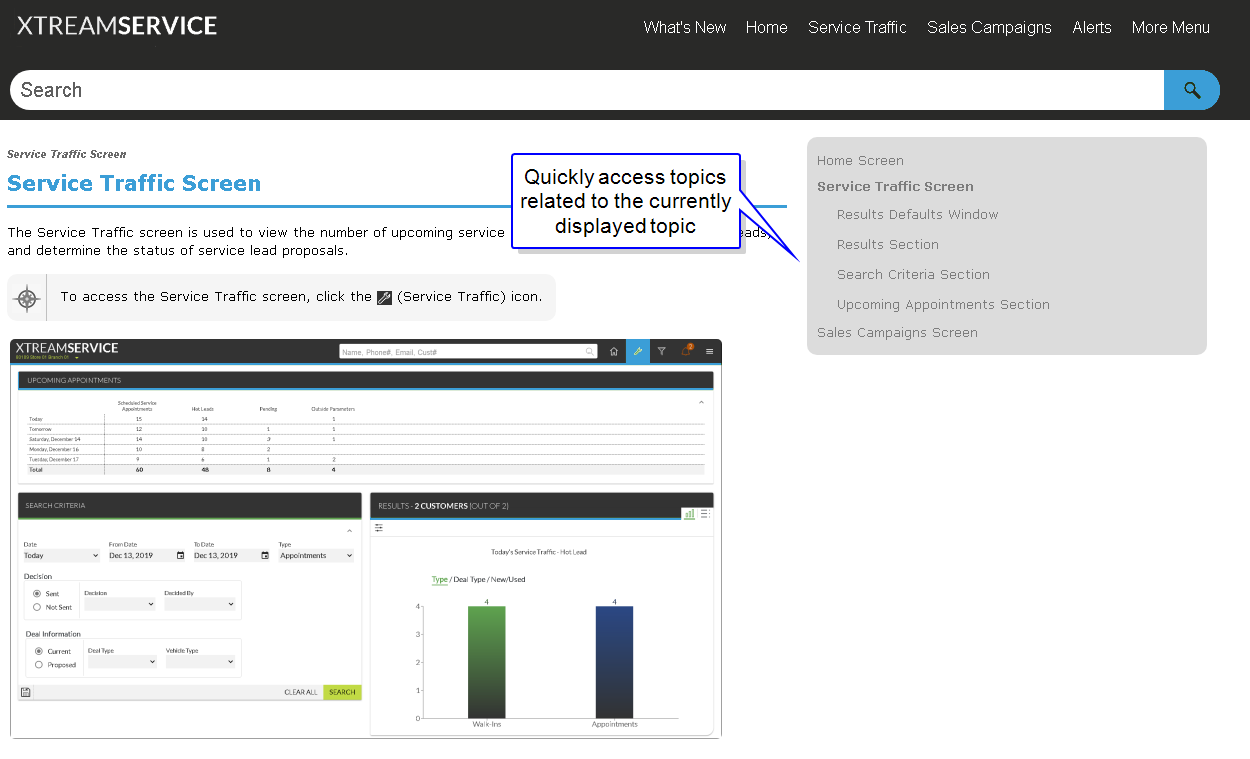
In addition, topics for other screens, such as the Home screen and the Sales Campaigns screen, can be accessed using the side menu. This feature is useful for exploring topics related to the screen or window you are reviewing without needing to know where the topic is located in the help file or needing to perform a search for the topic.
Access Topics Mentioned Within a Displayed Topic
Within each topic, references to other topics display as links that can be clicked to access the corresponding topic. For example, click the following link for the help screen to access a topic about the features of the Help screen in the XtreamService application. When a topic is accessed by clicking a link, simply click the back button on your Internet browser to return to the previously displayed topic.
Access Previous Topics Using Topic Paths
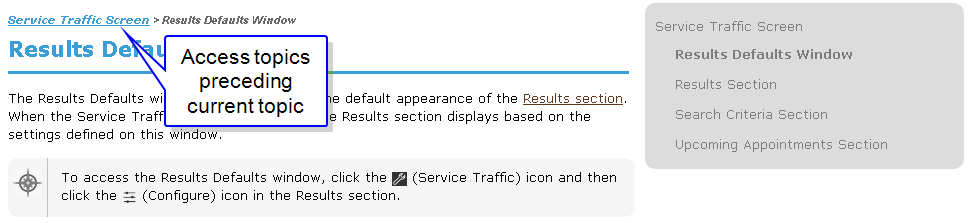
The path used to access a topic within a menu displays at the top of the topic. If the topic is located in a submenu, the topics immediately proceeding the current topic display as links that can be clicked to access the corresponding topics.
|
For example, in the previous image, the link displaying at the top of the Results Defaults window topic can be used to access the Service Traffic screen topic.
Click here for a list of products that may be mentioned in this help file.